Open your config-file (the one you downloaded together with the textures & that should now be in your crate-folder). It looks like this:
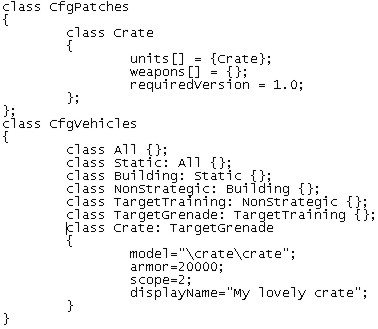
I am not going into detail about config-files. There are other tutorials out there that describes the different elements of a config file. If you happen to know a little Object Oriented Programming (like C++ or Java), you`ll notice that our Crate has been classified as an Static Building of some sort. But here are the most important stuff to us right now:
- model="\crate\crate" tells OFP where to find the 3d model for the crate. If it cant fint the model in the data3d.pbo (where most official 3d models are found), it starts looking in the game`s Addon folder. "\crate\crate" tells OFP that the p3d model file is called "crate" and is found in the "crate"-PBO file (which is also the folder name)
- DisplayName="My lovely crate" is the name the object will be called when you start looking for it in the Empty->Objects-list in the OFP Mission Editor. You can change that to anything you like (but make sure that name isnt used by another addon).
So, nothing for you to do here though. I just wanted to show you the config file. To learn more about config files, try
Operation Flashpoint Editing Center".
Now lets get your addon in the game!!
<-Back__Home__Next->